To be honest, this is the longest chapter I have learned so far. I nearly spent my whole week (spring break, OMG!) to finish reading it. But it's really useful, and I developed two awesome tools which satisfied me. So in the beginning of this chapter, I first learnt some core technical concepts related to Maya's GUI and then develop a base class for tool option windows. Then, explore some of Maya's built-in GUI controls and demonstrate how could easily extend this class to quickly create new tools. Finally, I learnt some advanced topics related to tool creation, such as serializing data and working with files.
In addition to have mastered some basic GUI commands, I have another hands-on example of some of the benefits of object-oriented programming in Maya using Python. By creating basic classes for common tool GUIs, I can introduce new tools much more easily than using MEL or manually creating new windows for every new tool. Moreover, I have learned best practices for executing commands with GUI controls, organizing GUI windows, and architecting GUI code in a larger code base.
Monday, March 18, 2013

Saturday, March 16, 2013
Pose Management Tool
import maya.cmds as cmds
import maya.mel as mel
import os, cPickle, sys, time
kPoseFileExtension = 'pse'
def showUI():
"""A function to instantiate the pose manager window"""
return AR_PoseManagerWindow.showUI()
class AR_PoseManagerWindow(object):
"""A class for a basic pose manager window"""
@classmethod
def showUI(cls):
win = cls()
win.create()
return win
def __init__(self):
"""Initialize data attributes"""
## a unique window handle
self.window = 'ar_poseManagerWindow'
## window title
self.title = 'Pose Manager'
## window size
self.size = (300, 174)
if mel.eval('getApplicationVersionAsFloat()') > 2010.0:
self.size = (300, 150)
## a temporary file in a writable location for storing a pose
self.tempFile = os.path.join(
os.path.expanduser('~'),
'temp_pose.%s'%kPoseFileExtension
)
## current clipboard status message
self.clipboardStat = 'No pose currently copied.'
if (os.path.exists(self.tempFile)):
self.clipboardStat = 'Old pose currently copied to clipboard.'
## file filter to display in file browsers
self.fileFilter = 'Pose (*.%s)'%kPoseFileExtension
def create(self):
"""Draw the window"""
# delete the window if its handle exists
if(cmds.window(self.window, exists=True)):
cmds.deleteUI(self.window, window=True)
# initialize the window
self.window = cmds.window(self.window, title=self.title, wh=self.size, s=False)
# main form layout
self.mainForm = cmds.formLayout()
# frame for copy/paste
self.copyPasteFrame = cmds.frameLayout(l='Copy and Paste Poses')
# form layout inside of frame
self.copyPasteForm = cmds.formLayout()
# create buttons in a 2-column grid
self.copyPasteGrid = cmds.gridLayout(cw=self.size[0]/2-2, nc=2)
self.copyBtn = cmds.button(l='Copy Pose', c=self.copyBtnCmd)
self.pasteBtn = cmds.button(l='Paste Pose', c=self.pasteBtnCmd)
# scroll view with label for clipboard status
cmds.setParent(self.copyPasteForm)
self.clipboardLayout = cmds.scrollLayout(h=42, w=self.size[0]-4)
self.clipboardLbl = cmds.text(l=self.clipboardStat)
# attach controls in the copyPaste form
ac = []; af = []
ac.append([self.clipboardLayout,'top',0,self.copyPasteGrid])
af.append([self.copyPasteGrid,'top',0])
af.append([self.clipboardLayout,'bottom',0])
cmds.formLayout(
self.copyPasteForm, e=True,
attachControl=ac, attachForm=af
)
# frame for save/load
cmds.setParent(self.mainForm)
self.loadSaveFrame = cmds.frameLayout(l='Save and Load Poses')
# create buttons in a 2-column grid
self.loadSaveBtnLayout = cmds.gridLayout(cw=self.size[0]/2-2, nc=2)
self.saveBtn = cmds.button(l='Save Pose', c=self.saveBtnCmd)
self.loadBtn = cmds.button(l='Load Pose', c=self.loadBtnCmd)
# attach frames to main form
ac = []; af = []
ac.append([self.loadSaveFrame,'top',0,self.copyPasteFrame])
af.append([self.copyPasteFrame,'top',0])
af.append([self.copyPasteFrame,'left',0])
af.append([self.copyPasteFrame,'right',0])
af.append([self.loadSaveFrame,'bottom',0])
af.append([self.loadSaveFrame,'left',0])
af.append([self.loadSaveFrame,'right',0])
cmds.formLayout(
self.mainForm, e=True,
attachControl=ac, attachForm=af
)
# show the window
cmds.showWindow(self.window)
# force window size
cmds.window(self.window, e=True, wh=self.size)
def getSelection(self):
rootNodes = cmds.ls(sl=True, type='transform')
if rootNodes is None or len(rootNodes) < 1:
cmds.confirmDialog(t='Error', b=['OK'],
m='Please select one or more transform nodes.')
return None
else: return rootNodes
def copyBtnCmd(self, *args):
"""Called when the Copy Pose button is pressed"""
rootNodes = self.getSelection()
if rootNodes is None: return
cmds.text(
self.clipboardLbl, e=True,
l='Pose copied at %s for %s.'%(
time.strftime('%I:%M'),
''.join('%s, '%t for t in rootNodes)[:-3]
)
)
exportPose(self.tempFile, rootNodes)
def pasteBtnCmd(self, *args):
"""Called when the Paste Pose button is pressed"""
if not os.path.exists(self.tempFile): return
importPose(self.tempFile)
def saveBtnCmd(self, *args):
"""Called when the Save Pose button is pressed"""
rootNodes = self.getSelection()
if rootNodes is None: return
filePath = ''
# Maya 2011 and newer use fileDialog2
try:
filePath = cmds.fileDialog2(
ff=self.fileFilter, fileMode=0
)
# BUG: Maya 2008 and older may, on some versions of OS X, return the
# path with no separator between the directory and file names:
# e.g., /users/adam/Desktopuntitled.pse
except:
filePath = cmds.fileDialog(
dm='*.%s'%kPoseFileExtension, mode=1
)
# early out of the dialog was canceled
if filePath is None or len(filePath) < 1: return
if isinstance(filePath, list): filePath = filePath[0]
exportPose(filePath, cmds.ls(sl=True, type='transform'))
def loadBtnCmd(self, *args):
"""Called when the Load Pose button is pressed"""
filePath = ''
# Maya 2011 and newer use fileDialog2
try:
filePath = cmds.fileDialog2(
ff=self.fileFilter, fileMode=1
)
except:
filePath = cmds.fileDialog(
dm='*.%s'%kPoseFileExtension, mode=0
)
# early out of the dialog was canceled
if filePath is None or len(filePath) < 1: return
if isinstance(filePath, list): filePath = filePath[0]
importPose(filePath)
def exportPose(filePath, rootNodes):
"""Save a pose file at filePath for rootNodes and their children"""
# try to open the file, w=write
try: f = open(filePath, 'w')
except:
cmds.confirmDialog(
t='Error', b=['OK'],
m='Unable to write file: %s'%filePath
)
raise
# built a list of hierarchy data
data = saveHiearchy(rootNodes, [])
# save the serialized data
cPickle.dump(data, f)
# close the file
f.close()
def saveHiearchy(rootNodes, data):
"""Append attribute values for all keyable attributes to data array"""
# iterate through supplied nodes
for node in rootNodes:
# skip non-transform nodes
nodeType = cmds.nodeType(node)
if not (nodeType=='transform' or
nodeType=='joint'): continue
# get animated attributes
keyableAttrs = cmds.listAttr(node, keyable=True)
if keyableAttrs is not None:
for attr in keyableAttrs:
data.append(['%s.%s'%(node,attr),
cmds.getAttr('%s.%s'%(node,attr))])
# if there are children, repeat the same process and append their data
children = cmds.listRelatives(node, children=True)
if children is not None: saveHiearchy(children, data)
return data
def importPose(filePath):
"""Import the pose data stored in filePath"""
# try to open the file, r=read
try: f = open(filePath, 'r')
except:
cmds.confirmDialog(
t='Error', b=['OK'],
m='Unable to open file: %s'%filePath
)
raise
# uncPickle the data
pose = cPickle.load(f)
# close the file
f.close()
# set the attributes to the stored pose
errAttrs = []
for attrValue in pose:
try: cmds.setAttr(attrValue[0], attrValue[1])
except:
try: errAttrs.append(attrValue[0])
except: errAttrs.append(attrValue)
# display error message if needed
if len(errAttrs) > 0:
importErrorWindow(errAttrs)
sys.stderr.write('Not all attributes could be loaded.')
def importErrorWindow(errAttrs):
"""An error window to display if there are unknown attributes when importing a pose"""
win='ar_errorWindow'
# a function to dismiss the window
def dismiss(*args):
cmds.deleteUI(win, window=True)
# destroy the window if it exists
if cmds.window(win, exists=True):
dismiss()
# create the window
size = (300, 200)
cmds.window(
win, wh=size, s=False,
t='Unknown Attributes'
)
mainForm = cmds.formLayout()
# info label
infoLbl = cmds.text(l='The following attributes could not be found.\nThey are being ignored.', al='left')
# display a list of attributes that could not be loaded
scroller = cmds.scrollLayout(w=size[0])
errStr = ''.join('\t- %s\n'%a for a in errAttrs).rstrip()
cmds.text(l=errStr, al='left')
# dismiss button
btn = cmds.button(l='OK', c=dismiss, p=mainForm, h=26)
# attach controls
ac = []; af=[];
ac.append([scroller,'top',5,infoLbl])
ac.append([scroller,'bottom',5,btn])
af.append([infoLbl,'top',5])
af.append([infoLbl,'left',5])
af.append([infoLbl,'right',5])
af.append([scroller,'left',0])
af.append([scroller,'right',0])
af.append([btn,'left',5])
af.append([btn,'right',5])
af.append([btn,'bottom',5])
cmds.formLayout(
mainForm, e=True,
attachControl=ac, attachForm=af
)
# show the window
cmds.window(win, e=True, wh=size)
cmds.showWindow(win)
Result:

Thursday, March 14, 2013
Polygon Creation Tool
import maya.cmds as cmds
from optwin import AR_OptionsWindow;
class AR_PolyOptionsWindow(AR_OptionsWindow):
def __init__(self):
AR_OptionsWindow.__init__(self);
self.title = 'Polygon Creation Options'; //reassign name
self.actionName = 'Create'; //reassign action button name
def displayOptions(self):
self.objType = cmds.radioButtonGrp(
label = 'Object Type: ',
labelArray4=[
'Cube',
'Cone',
'Cylinder',
'Sphere'
],
numberOfRadioButtons=4,
select=1 //set default selected item to 1(Cube)
);
self.xformGrp = cmds.frameLayout( //create a frame layout and stores it in the xformGrp attribute.
label='Transformations',
collapsable=True
);
cmds.formLayout(
self.optionsForm, e=True,
attachControl=(
[self.xformGrp, 'top',2,self.objType]
),
attachForm=(
[self.xformGrp, 'left',0],
[self.xformGrp, 'right',0]
)
);
self.xformCol = cmds.columnLayout();
self.position = cmds.floatFieldGrp(
label='Position: ',
numberOfFields=3
);
self.rotation = cmds.floatFieldGrp(
label='Rotation(XYZ): ',
numberOfFields=3
);
self.scale = cmds.floatFieldGrp(
label='Scale: ',
numberOfFields=3,
value=[1.0,1.0,1.0,1.0] //set default value
);
cmds.setParent(self.optionsForm); //call to the setParent command to make optionsForm the current parent again.
self.color = cmds.colorSliderGrp( //add a color picker control, the colorSliderGrp command creates a color picker with a luminance slider next to it.
label='Polygon Color: '
);
cmds.formLayout(
self.optionsForm, e=True,
attachControl=(
[self.color, 'top',0,self.xformGrp]
),
attachForm=(
[self.color, 'left',0]
)
);
def applyBtnCmd(self, *args):
self.objIndAsCmd = { //create a dictionary to map the radio indices to different function pointers.
1:cmds.polyCube,
2:cmds.polyCone,
3:cmds.polyCylinder,
4:cmds.polySphere
};
objIndex = cmds.radioButtonGrp( //query the objType radio button group and use the dictionary to execute the command that corresponds to the currently selected index.
self.objType, q=True,
select=True
);
newObject = self.objIndAsCmd[objIndex]();
pos = cmds.floatFieldGrp( //apply translation to the newly created object's transform node
self.position, q=True,
value=True
);
rot = cmds.floatFieldGrp( //apply rotation to the newly created object's transform node
self.rotation, q=True,
value=True
);
scale = cmds.floatFieldGrp( //apply scale to the newly created object's transform node
self.scale, q=True,
value=True
);
cmds.xform(newObject[0], t=pos, ro=rot, s=scale);
col = cmds.colorSliderGrp( //apply the selected color to the new model's vertices.
self.color, q=True,
rgbValue=True
);
cmds.polyColorPerVertex(
newObject[0],
colorRGB=col,
colorDisplayOption=True
);
AR_PolyOptionsWindow.showUI();
Result:


from optwin import AR_OptionsWindow;
class AR_PolyOptionsWindow(AR_OptionsWindow):
def __init__(self):
AR_OptionsWindow.__init__(self);
self.title = 'Polygon Creation Options'; //reassign name
self.actionName = 'Create'; //reassign action button name
def displayOptions(self):
self.objType = cmds.radioButtonGrp(
label = 'Object Type: ',
labelArray4=[
'Cube',
'Cone',
'Cylinder',
'Sphere'
],
numberOfRadioButtons=4,
select=1 //set default selected item to 1(Cube)
);
self.xformGrp = cmds.frameLayout( //create a frame layout and stores it in the xformGrp attribute.
label='Transformations',
collapsable=True
);
cmds.formLayout(
self.optionsForm, e=True,
attachControl=(
[self.xformGrp, 'top',2,self.objType]
),
attachForm=(
[self.xformGrp, 'left',0],
[self.xformGrp, 'right',0]
)
);
self.xformCol = cmds.columnLayout();
self.position = cmds.floatFieldGrp(
label='Position: ',
numberOfFields=3
);
self.rotation = cmds.floatFieldGrp(
label='Rotation(XYZ): ',
numberOfFields=3
);
self.scale = cmds.floatFieldGrp(
label='Scale: ',
numberOfFields=3,
value=[1.0,1.0,1.0,1.0] //set default value
);
cmds.setParent(self.optionsForm); //call to the setParent command to make optionsForm the current parent again.
self.color = cmds.colorSliderGrp( //add a color picker control, the colorSliderGrp command creates a color picker with a luminance slider next to it.
label='Polygon Color: '
);
cmds.formLayout(
self.optionsForm, e=True,
attachControl=(
[self.color, 'top',0,self.xformGrp]
),
attachForm=(
[self.color, 'left',0]
)
);
def applyBtnCmd(self, *args):
self.objIndAsCmd = { //create a dictionary to map the radio indices to different function pointers.
1:cmds.polyCube,
2:cmds.polyCone,
3:cmds.polyCylinder,
4:cmds.polySphere
};
objIndex = cmds.radioButtonGrp( //query the objType radio button group and use the dictionary to execute the command that corresponds to the currently selected index.
self.objType, q=True,
select=True
);
newObject = self.objIndAsCmd[objIndex]();
pos = cmds.floatFieldGrp( //apply translation to the newly created object's transform node
self.position, q=True,
value=True
);
rot = cmds.floatFieldGrp( //apply rotation to the newly created object's transform node
self.rotation, q=True,
value=True
);
scale = cmds.floatFieldGrp( //apply scale to the newly created object's transform node
self.scale, q=True,
value=True
);
cmds.xform(newObject[0], t=pos, ro=rot, s=scale);
col = cmds.colorSliderGrp( //apply the selected color to the new model's vertices.
self.color, q=True,
rgbValue=True
);
cmds.polyColorPerVertex(
newObject[0],
colorRGB=col,
colorDisplayOption=True
);
AR_PolyOptionsWindow.showUI();
Result:


Wednesday, March 13, 2013
Executing Commands with GUI Objects
class AR_OptionsWindow(object):
def showUI(cls): //provides a shortcut for creating and displaying a new window instance.
win = cls();
win.create();
return win;
def __init__(self):
self.window = 'ar_optionsWindow';
self.title = 'Meng\'s Window';
self.size = (546, 350);
self.supportsToolAction = False;
self.actionName = 'Apply and Close'; //set Apply and Close as the name that will display on the window's action button.Apply button and Close button do not need to set because most windows in Maya default to something like Apply and Close.
def actionBtnCmd(self, *args): //invoke the Apply behavior and then the Close behavior.
self.applyBtnCmd();
self.closeBtnCmd();
def applyBtnCmd(self, *args): pass //subclasses will need to override this method.
def closeBtnCmd(self, *args): //simply closes the window
cmds.deleteUI(self.window, window=True);
def commonMenu(self):
self.editMenu = cmds.menu(label='Edit');
self.editMenuSave = cmds.menuItem(
label='Save Settings',
command=self.editMenuSaveCmd //pass the pointer to the editMenuSaveCmd() method.
);
self.editMenuReset = cmds.menuItem(
label='Reset Settings',
command=self.editMenuResetCmd //pass the pointer to the editMenuResetCmd() method.
);
self.editMenuDiv = cmds.menuItem(d=True);
self.editMenuRadio = cmds.radioMenuItemCollection();
self.editMenuTool = cmds.menuItem(
label='As Tool',
radioButton=True,
enable=self.supportsToolAction,
command=self.editMenuActionCmd //pass the pointer to the editMenuToolCmd() method.
);
self.editMenuAction = cmds.menuItem(
label='As Action',
radioButton=True,
enable=self.supportsToolAction,
command=self.editMenuActionCmd //pass the pointer to the editMenuActionCmd() method.
);
self.helpMenu = cmds.menu(label='Help');
self.helpMenuItem = cmds.menuItem(
label='Help on %s'%self.title,
command=self.helpMenuCmd //pass the pointer to the helpMenuCmd() method.
);
def commonButtons(self):
self.commonBtnSize = ((self.size[0]-18)/3, 26); //specify a size for buttons as a tuple: (width,height)
//the commonBtnLayout assignment (rowLayout call) do not scale when adjust the size of the window. Sacling in the width of the window simply clips the buttons on the right side. To fix this problem, I use a more advanced layout: formLayout as below:
self.actionBtn = cmds.button(
label=self.actionName,
height=self.commonBtnSize[1],
command=self.actionBtnCmd
);
self.applyBtn = cmds.button(
label='Apply',
height=self.commonBtnSize[1],
command=self.applyBtnCmd
);
self.closeBtn = cmds.button(
label='Close',
height=self.commonBtnSize[1],
command=self.closeBtnCmd
);
cmds.formLayout( //the formLayout command in edit mode to configure how the buttons need to be attached in mainForm
self.mainForm, e=True,
attachForm=( //specifies edges on controls that pin to the bounds of the form we passed to the command.
[self.actionBtn, 'left', 5],
[self.actionBtn, 'bottom', 5],
[self.applyBtn, 'bottom', 5],
[self.closeBtn, 'right', 5],
[self.closeBtn, 'bottom', 5]
),
attachPosition=(
[self.actionBtn, 'right',1,33],//correspond to points approximately one-third of the form's width(33/100). The middle number(1) represents a pixel offset for the attachment.
[self.closeBtn, 'left',0,67]
),
attachControl=( //specifies edges on a control that attach to another control, with an optional offset.
[self.applyBtn, 'left',4,self.actionBtn],
[self.applyBtn, 'right',4,self.closeBtn]
),
attachNone=( //specifies edges on controls that should not attach to anything, and hence should not scale.
[self.actionBtn, 'top'],
[self.applyBtn, 'top'],
[self.closeBtn, 'top']
)
);
def helpMenuCmd(self, *args): //this method will load the Python Standard Library web site in a browser.
cmds.launch(web='http://docs.python.org/2/library/');
def editMenuSaveCmd(self, *args): pass //add four placeholder methods for child classes to override: editMenuSaveCmd(), editMenuResetCmd(), editMenuToolCmd(), editMenuActionCmd().
def editMenuResetCmd(self, *args): pass
def editMenuToolCmd(self, *args): pass
def editMenuActionCmd(self, *args): pass
def displayOptions(self): pass //This method will be overridden in child classes to actually display the contents in the main part of the options window.
def create(self):
if cmds.window(self.window, exists=True):
cmds.deleteUI(self.window, window=True);
self.window = cmds.window(
self.window,
title=self.title,
widthHeight=self.size,
menuBar=True
);
self.mainForm = cmds.formLayout(nd=100); //The mainForm attribute will be the parent for the next layout defined in the window (the row layout), which will be positioned at the top left of the form by default. The nd (numberOfDivisions) flag that passed to the formLayout command allows to use relative coordinates when specifying attachment positions of controls.
self.commonMenu();
self.commonButtons(); //add a call to commonButtons() in the create() method
self.optionsBorder = cmds.tabLayout( //add a border for the window
scrollable=True,
tabsVisible=False,
height=1
);
cmds.formLayout(
self.mainForm, e=True,
attachForm=(
[self.optionsBorder,'top',0],
[self.optionsBorder,'left',2],
[self.optionsBorder,'right',2]
),
attachControl=(
[self.optionsBorder,'bottom',5,self.applyBtn]
)
);
self.optionsForm = cmds.formLayout(nd=100);
self.displayOptions();
cmds.showWindow();
testWindow = AR_OptionsWindow();
testWindow.create();
Result:

Tuesday, March 12, 2013
Menus and menu items
class AR_OptionsWindow(object):
def __init__(self):
self.window = 'ar_optionsWindow';
self.title = 'Meng\'s Window';
self.size = (546, 350);
self.supportsToolAction = False;
def commonMenu(self):
self.editMenu = cmds.menu(label='Edit');
self.editMenuSave = cmds.menuItem(
label='Save Settings'
);
self.editMenuReset = cmds.menuItem(
label='Reset Settings'
);
self.editMenuDiv = cmds.menuItem(d=True); //create a divider
self.editMenuRadio = cmds.radioMenuItemCollection(); //call the radioMenuItemCollection command to initiate a sequence of items in a radio button group.
self.editMenuTool = cmds.menuItem(
label='As Tool',
radioButton=True,
enable=self.supportsToolAction
);
self.editMenuAction = cmds.menuItem(
label='As Action',
radioButton=True,
enable=self.supportsToolAction
);
self.helpMenu = cmds.menu(label='Help');
self.helpMenuItem = cmds.menuItem(
label='Help on %s'%self.title
);
def create(self):
if cmds.window(self.window, exists=True):
cmds.deleteUI(self.window, window=True);
self.window = cmds.window(
self.window,
title=self.title,
widthHeight=self.size,
menuBar=True
);
self.commonMenu();
cmds.showWindow();
testWindow = AR_OptionsWindow();
testWindow.create();

PS: Although this menu looks pretty good by Autodesk's standards, none of its menu items actually do anything yet. At this point, I should look into adding some commands. I will do it tomorrow following the book.
Saturday, March 9, 2013
Base Window Class
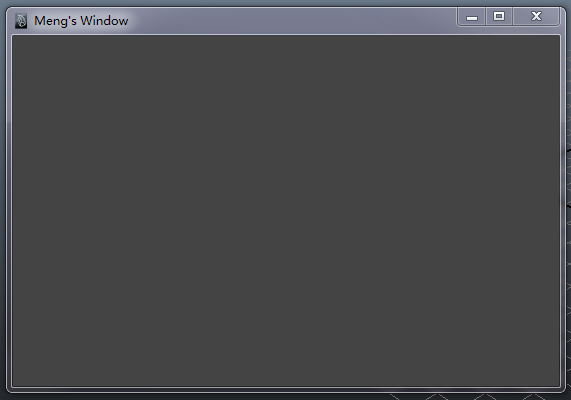
class AR_OptionsWindow(object): //create the AR_OptionsWindow class
def __init__(self):
self.window = 'ar_optionsWindow';
self.title = 'Meng\'s Window';
self.size = (546, 350);
def create(self):
if cmds.window(self.window, exists=True):
cmds.deleteUI(self.window, window=True);
self.window = cmds.window(
self.window,
title=self.title,
widthHeight=self.size
);
cmds.showWindow();
testWindow = AR_OptionsWindow(); //create a new instance of the AR_OptionsWindow class
testWindow.create(); //call its create() method.
Friday, March 8, 2013
Create Windows
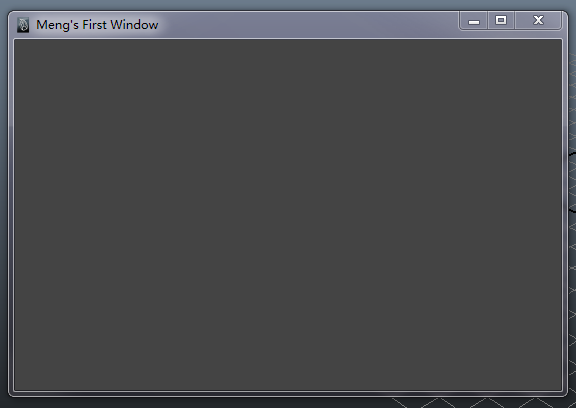
import maya.cmds as cmds;
win = cmds.window(
'ar_optionsWindow',
title='Meng\'s First Window', //a title bar string,\is the escape character(转义字符)
widthHeight=(546,350) //window's size
);
cmds.showWindow(win); //to display the window
 |
cmds.deleteUI(win, window=True); //delete exiting window
win = cmds.window(
'ar_optionsWindow',
title='Meng\'s Second Window',
widthHeight=(546,350)
);
cmds.showWindow(win);

Subscribe to:
Posts (Atom)